
Adding Multiple Contacts to a Document
When creating contracts or purchase agreements, you may need to include multiple sellers or multiple buyers on a single document. Here’s how to set this up using placeholders and contacts.
In this article:
Step 1: Use the Contacts Placeholders
-
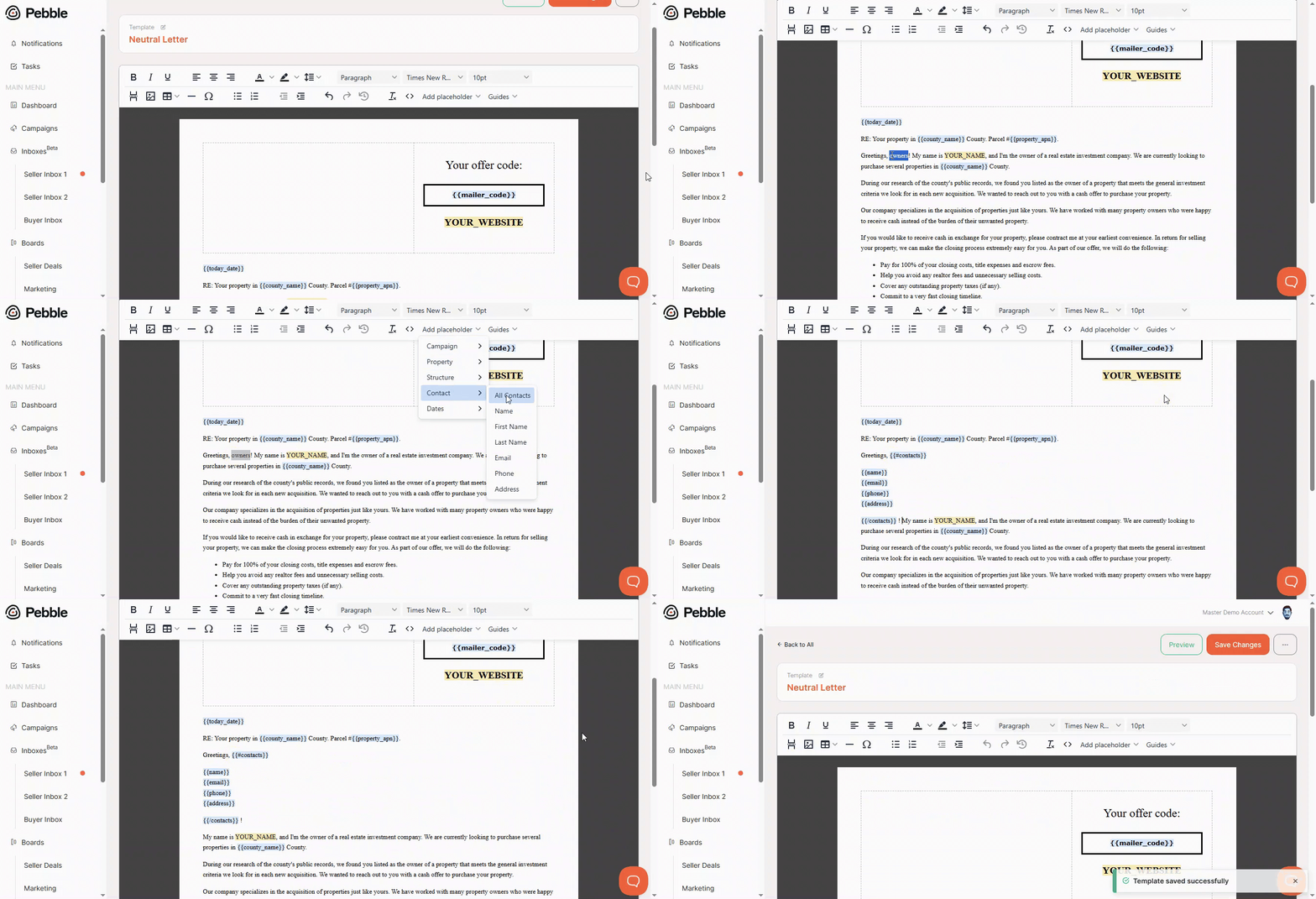
In your document template, define where you want to place the Owners section.
Use the
{{#all_contacts}}placeholder to pull in all contacts (find the "Add placeholder" button on the menu above).-
By default, this will list Name, Email, Phone, and Address for each contact.
If you only want certain fields, delete the ones you don’t need.
- Example: Keep just Name and Phone.
- You can also format them inline, such as
Name – Phone.
-
Step 2: Generate the Document from the Property
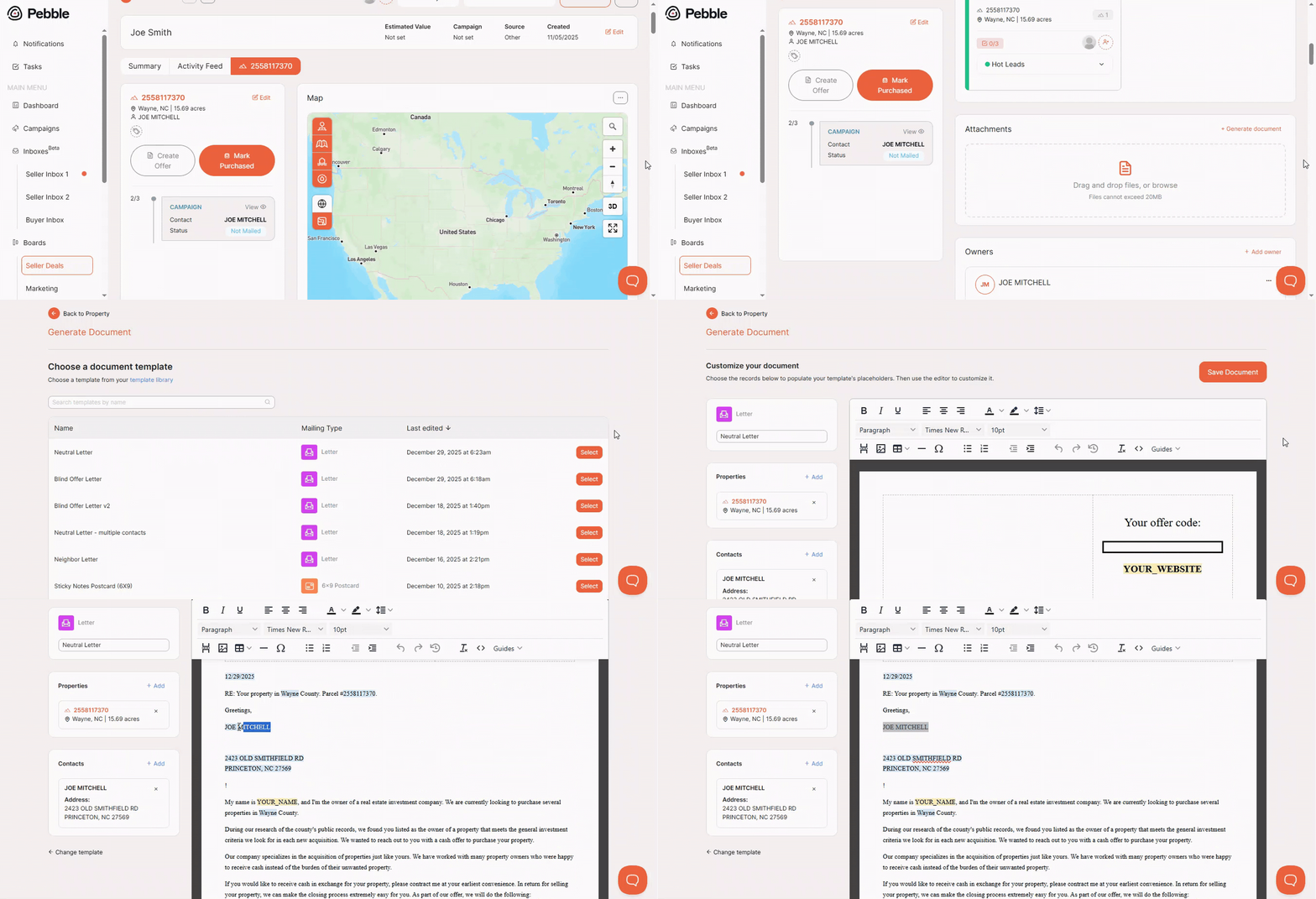
- Go to the property record and generate the document using your updated template.
- By default, only the primary contact will appear.
Step 3: Manually Add Additional Contacts
To include additional sellers or buyers:
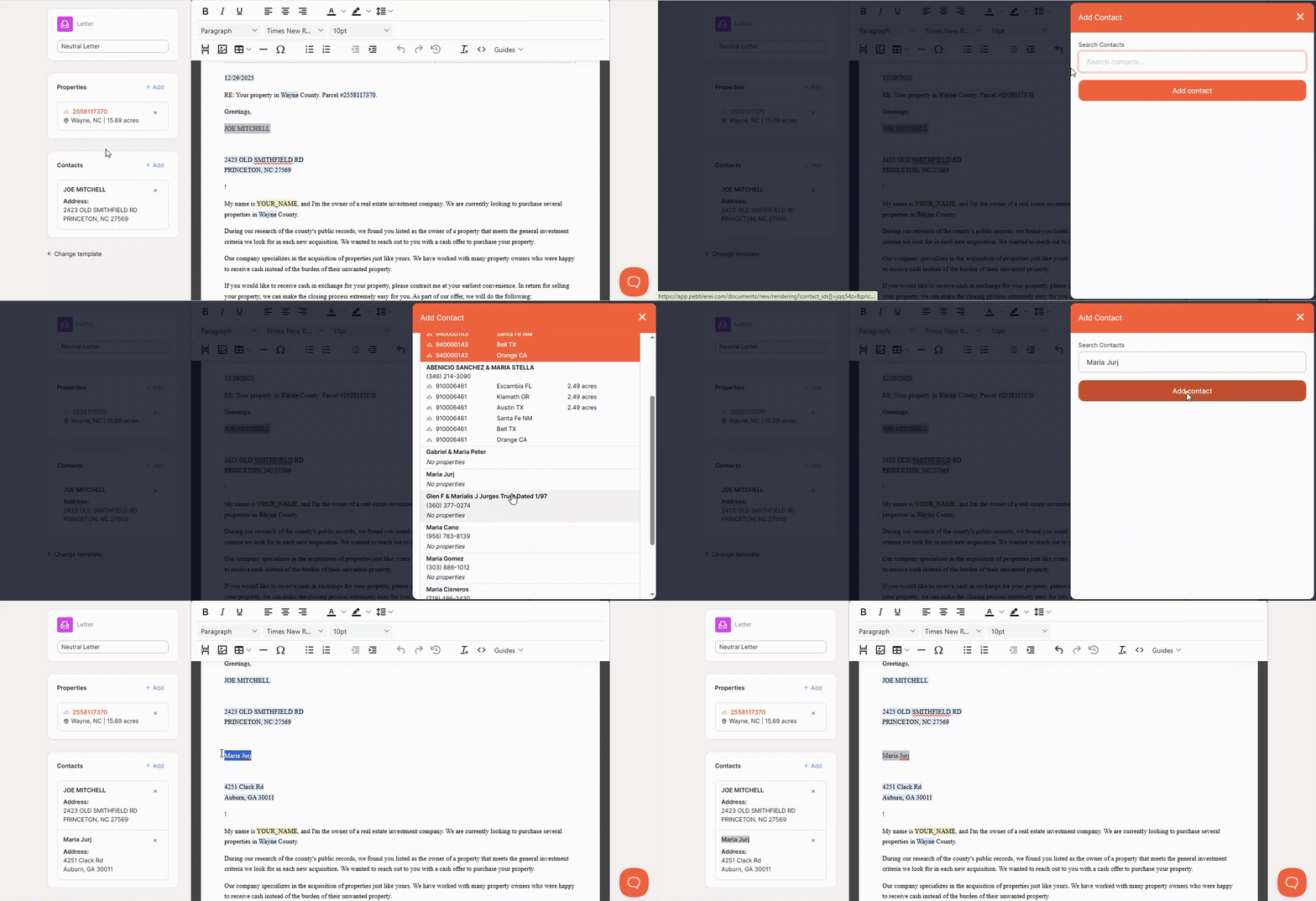
- Go to the Seller Contacts section on the left-hand menu while generating the document.
- Hit the +Add button.
- Type in the name of the person, search for them on the list that will appear and select the additional contact (seller or buyer) you want included.
- Once added, the placeholder will automatically pull their details into the document.
Notes & Limitations
- Multiple owners are not automatically pulled in from the deal card. You must manually add them during document generation.
- The placeholder text (e.g., Seller Contacts vs Buyer Contacts) will adjust based on whether you’re working with sellers or buyers.
- You can format placeholders with line breaks or inline formatting depending on how you want information displayed.